🚀️ Download our Mobile App and book meetings on the go


Outreach & Automation
Campaigns, sequences, follow-ups and AI replies.


Deliverability
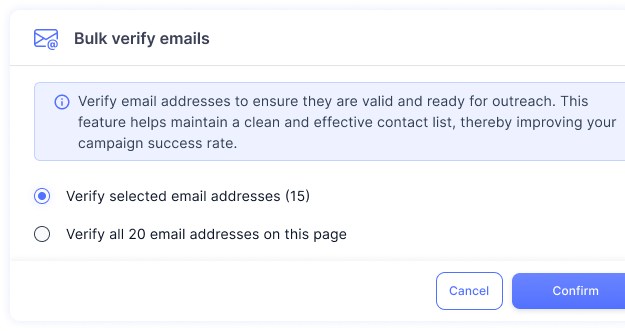
Warm-up, placement tests and email verification.


Data & Integrations
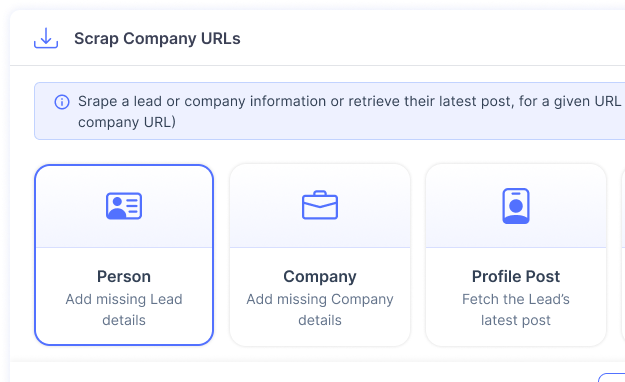
Enrichment, list management, integrations and API.

Warm-up that adapts to mailbox health
Build sender reputation, cut bounces and stay out of spam. The figures below are sample data.

Warmup Email Sent

7586
700

Landed in Inbox

99.8%
7515

Saved from Spam

0.2%
14

Saved from Promotion

0.1%
7


Works with the tools you already use
HubSpot, GoHighLevel, Zapier, Make and MCP

Learn
Blog, customer stories, help center and community.

Compare
How PlusVibe compares with other cold email tools.

Free tools
Email finder, verifier, spam checker and calculators.

B2B Sales & Marketing Glossary
Glossary of GTM, sales, and growth terms.
Cold email guides and playbooks
Deliverability, warm-up, copywriting and outbound strategy guides from the PlusVibe team.


PlusVibe University
Lessons and answers from the PlusVibe team

For Agencies
A sending server and IPs per client

For Founders
Book meetings without a sales team

For Freelancers
Win more clients with less effort

For Enterprise
Role-based access and reporting at scale

For Sales Teams
A predictable outbound pipeline

For Marketing Teams
Outbound campaigns that scale

White-Label App
Your own branded iOS and Android app

Certified Partners
Work with proven cold email agencies