Outlook deliverability comes down to two sets of settings: the ones you control as a sender (DNS authentication, sending volume, list quality, content) and the ones a Microsoft 365 administrator controls inside Exchange Online (outbound spam policy, mail flow, MX routing). Recipients also have their own Safe Senders lists, but those are the weakest lever of all. This guide walks through each layer in the order you should fix them, and shows how to diagnose a message that landed in Junk or bounced.
Key Takeaways
- Publish SPF and DKIM, add a DMARC policy (at least p=none), and make sure the domain in your From address aligns with at least one of SPF or DKIM.
- Microsoft weighs sending IP, domain reputation, authentication, list accuracy, complaint rates and content together, so no single setting guarantees the inbox.
- Exchange Online admins should review the outbound spam policy and point MX records directly at Microsoft 365 for the best filtering.
- Recipient-side Safe Senders lists help a little, but they never override malware or high-confidence phishing detections.
- New domains and IPs have no reputation: ramp volume slowly, keep complaints low and monitor with Microsoft’s own tools.
Table of Contents
- How Outlook decides between inbox and junk
- Authentication: SPF, DKIM and DMARC
- Exchange Online settings an administrator should review
- Safe Senders: recipient settings versus sender settings
- Volume, warm-up and list quality
- How to diagnose Outlook spam placement and rejections
- Our perspective: reputation beats tweaks
- Put the settings on autopilot
- FAQ
- Sources
How Outlook decides between inbox and junk
Microsoft does not use one switch. According to Microsoft’s own troubleshooting guidance, Microsoft 365 anti-spam filters evaluate the sending IP address, domain reputation, email authentication (SPF, DKIM, DMARC), list accuracy, junk complaint rates and message content. Each factor feeds the verdict, so a perfectly authenticated message from a brand-new domain with a purchased list can still land in Junk.
Two things follow from that:
- Reputation is earned per domain and per IP. A new IP has no history, so it is more likely to hit delivery problems. The same Microsoft page notes that a faster ramp-up may be possible if your domain already has a good reputation.
- Complaints weigh heavily. Microsoft names junk email complaint rates as one of the principal factors that drives a sender’s reputation down and hurts its ability to deliver.
There are really three audiences for “Outlook deliverability settings”: the person sending (a founder, sales rep or agency), the Microsoft 365 admin who runs the sending tenant, and the recipient with a mailbox. Most guides blur them. We will keep them apart.
Authentication: SPF, DKIM and DMARC
Authentication is the foundation, and Outlook.com now enforces it. Microsoft’s support documentation states that senders must publish SPF and DKIM records and a DMARC policy of at least p=none, and that at least one of SPF or DKIM must align with the domain in the 5322.From address. The same page says domains sending more than 5,000 emails per day to Outlook.com accounts must fully comply with SPF, DKIM and DMARC.
The enforcement is real. Per the Outlook Postmaster policies page, effective May 5, 2025, high-volume messages that do not meet the authentication requirements are routed to the Junk folder or rejected with a 550 5.7.515 error.
What each record does
| Record | What it proves | What to check |
|---|---|---|
| SPF | The sending server is allowed to send for your domain | One SPF record per domain, including every service that sends as you |
| DKIM | The message was signed by your domain and not altered | Signing enabled for the exact domain used in your From address |
| DMARC | What to do when checks fail, and that domains align | A published policy, starting at p=none, with reporting turned on |
Alignment is where most setups fail
Passing SPF is not the same as aligning. Microsoft explains that DMARC addresses the lack of domain alignment in SPF and DKIM by verifying that the MAIL FROM and From domains match. A sending platform that signs with its own domain can pass DKIM while still failing DMARC for your brand. The fix is to configure custom DKIM signing for your own domain in every tool that sends mail on your behalf.
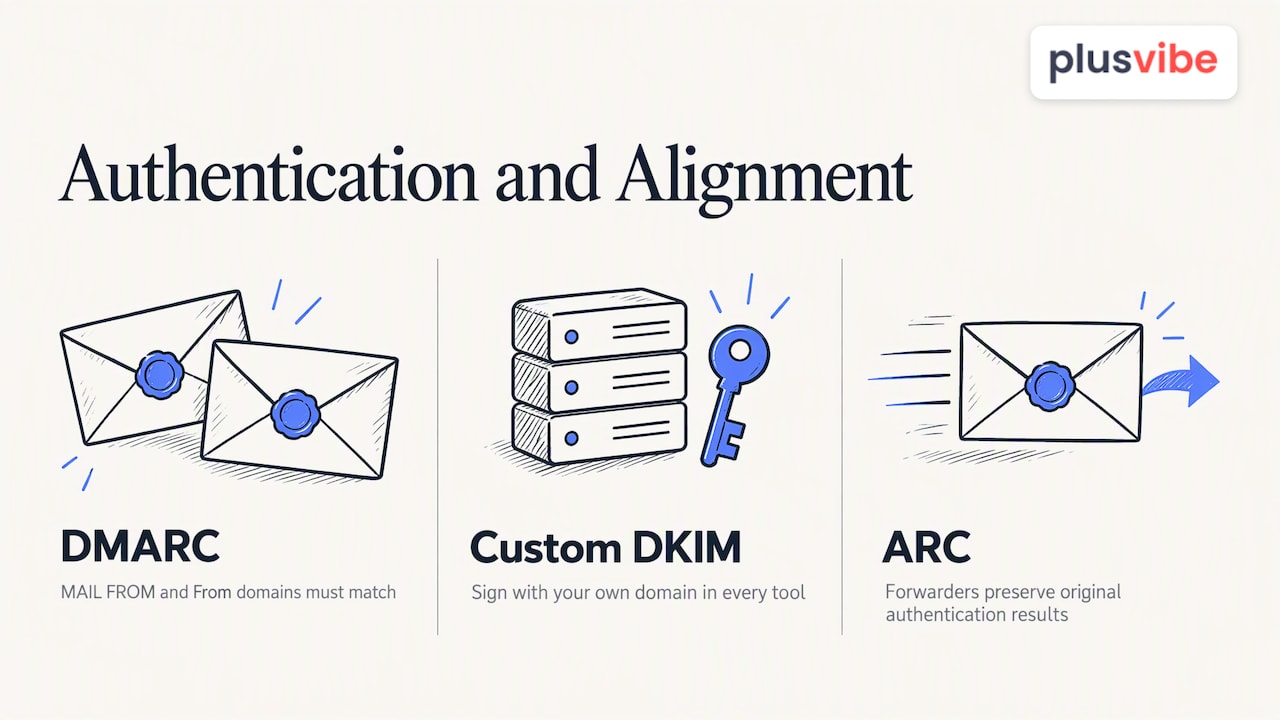
One more detail worth knowing: Authenticated Received Chain (ARC) lets services that modify messages in transit, such as forwarders, preserve the original authentication results, which helps maintain DMARC compliance, per the same Microsoft page.
Outlook Postmaster also makes the point that all senders should implement these standards not merely to meet a minimum but to proactively protect domain reputation. Treat p=none as a starting line. Once your DMARC reports show every legitimate source passing, move toward a stricter policy.
A practical authentication checklist
- List every system that sends mail as your domain: your mailboxes, your CRM, your sales tool, your billing system.
- Merge them into a single SPF record.
- Enable DKIM signing with your own domain for each system.
- Publish a DMARC record at p=none with a reporting address.
- Send a test message to an Outlook.com address and read the headers (covered below) to confirm SPF, DKIM and DMARC all pass and align.
Exchange Online settings an administrator should review
If you send from Microsoft 365 mailboxes, your tenant’s settings matter as much as your DNS.
Outbound spam policy
Microsoft’s documentation says the default outbound spam policy applies to all senders, and administrators can create custom policies for specific users, groups or domains. That matters for outreach teams: a sales group sending at higher volume may deserve its own policy, reviewed deliberately, rather than being left to default limits.
The same page explains that Microsoft 365 automatically monitors outbound email for unusual activity, and suspicious messages may be routed through a high-risk delivery pool to protect the service’s overall IP reputation. In practice, a compromised account or a sudden burst of identical messages can push your mail into a pool with weaker reputation, which hurts placement even after you fix the cause. Watch for blocked-user alerts and investigate them the same day.
MX records and mail flow
Microsoft recommends pointing your organization’s MX records directly to Microsoft 365, because routing mail through an external service first can reduce filter effectiveness. Microsoft describes the MX record as the initial connection point for spam scanning, which significantly affects whether a message is classified as legitimate or spam. If you run a third-party gateway in front of Exchange Online, review whether you need it, and if you do, make sure it is configured so Microsoft can still see the true sending IP.
High Volume Email for automated messages
If your use case is automated transactional or operational mail, such as system notifications, Microsoft’s High Volume Email (HVE) feature is designed for exactly that, using dedicated accounts separate from user or shared mailboxes. Some specifics from Microsoft’s documentation:
- HVE accounts support modern authentication (OAuth) and basic authentication, though basic authentication is disabled if Security Defaults are enabled in Microsoft Entra ID.
- There is a 50-recipient-per-message limit. For bulk sends, Microsoft recommends sending to a single recipient, such as a dynamic or static distribution list.
HVE is not a cold outreach tool. It is built for operational messaging, so do not route prospecting campaigns through it.
Safe Senders: recipient settings versus sender settings
A common forum answer is to ask the recipient to add you to Safe Senders. It can help a single colleague or customer, but it is not a deliverability strategy.
Microsoft’s documentation clarifies two points. First, Microsoft 365 ignores the mailbox-level junk email rule and uses the anti-spam policies configured by administrators to route messages to the Junk Email folder. Second, user-configured Safe Senders lists influence filtering but do not guarantee delivery, because malware and high-confidence phishing detections take precedence.
So the split looks like this:
| Layer | Who controls it | Reliable for scale? |
|---|---|---|
| DNS authentication, volume, list hygiene | The sender | Yes |
| Outbound spam policy, MX routing | Sender’s Microsoft 365 admin | Yes |
| Allow entries in the recipient’s tenant | Recipient’s admin | Only for a specific organization |
| Safe Senders in a personal mailbox | Individual recipient | No |
If you are a sender, spend your effort on the first two rows. If an important customer cannot see your mail, ask their IT admin to create an allow entry in their own tenant, and still fix your own authentication so the next customer does not need that favor.
Volume, warm-up and list quality
Settings only get you to the starting line. Reputation with Microsoft recipients comes from behavior over time.
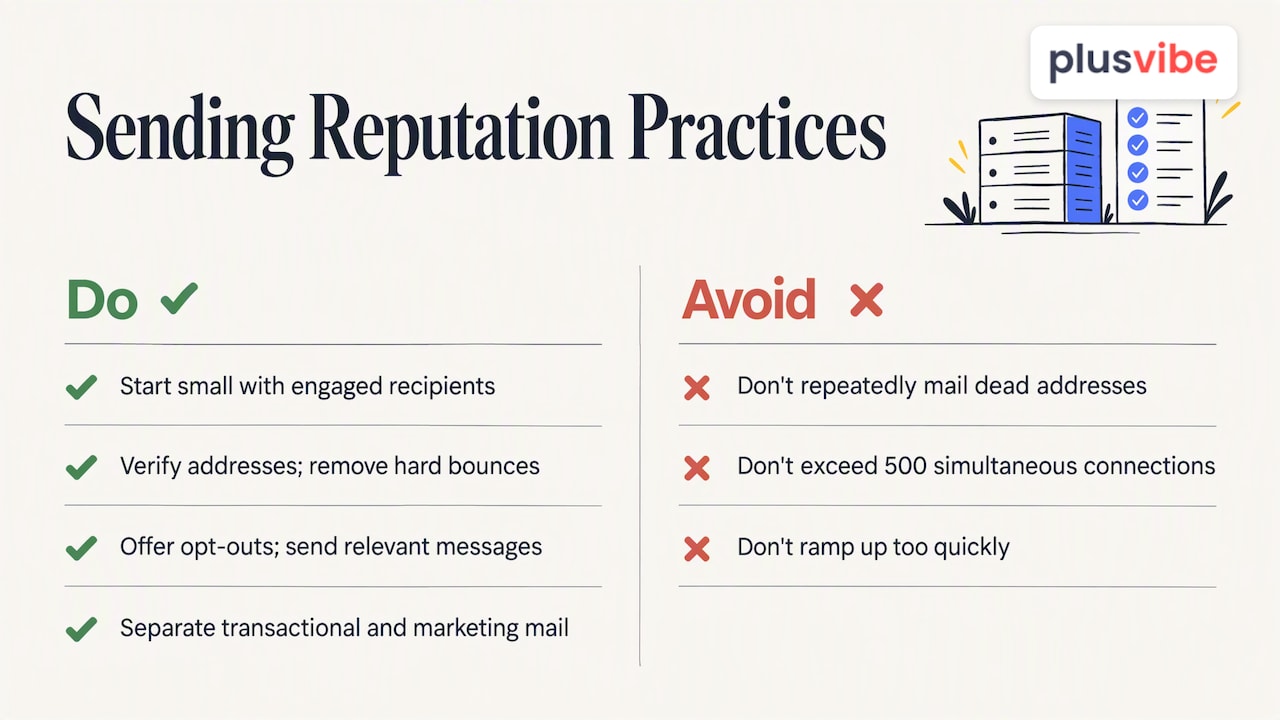
Ramp up gradually. New domains and IPs have no history. Start with small daily volumes to engaged recipients, then increase as bounces and complaints stay low. Our guides on warming up a new inbox or domain and on choosing an email warm-up service cover the schedule in detail.
Keep the list accurate. List accuracy is one of the factors Microsoft lists, so verify addresses before sending and remove hard bounces immediately. Repeatedly mailing dead addresses signals poor list hygiene.
Keep complaints low. Include a clear way to opt out, send relevant messages to the right people, and stop mailing anyone who objects. This is the factor Microsoft singles out as most damaging.
Separate mail types. Keep transactional mail on a different domain or subdomain than marketing or outreach, so a problem in one stream does not drag down the other.
Respect server rules. The Outlook Postmaster policies require that sending servers comply with IETF standards, avoid namespace mining, have valid reverse DNS records, and not open more than 500 simultaneous connections without prior arrangement.
If you are choosing a tool to handle this at scale, a side-by-side look at email marketing platforms compared shows how different products approach sender reputation, authentication and message content.
For a broader routine, see our email deliverability checklist and email deliverability best practices.
How to diagnose Outlook spam placement and rejections
When something goes wrong, work through these steps in order.
- Read the bounce code. A 550 5.7.515 error means a high-volume sender failed Microsoft’s authentication requirements, per Microsoft Support. Fix SPF, DKIM and DMARC alignment first.
- Inspect the headers. Send a test to an Outlook.com mailbox, open the message headers and look at the SPF, DKIM and DMARC results. Any fail or missing alignment is your first target.
- Check your reputation signals. Microsoft points senders to its Postmaster guidance, the Junk Email Reporting Program (JMRP) and Smart Network Data Services (SNDS) for managing IP reputation. Enrolling gives you complaint feedback and visibility into what Microsoft sees from your IPs.
- Review your tenant. If you send from Microsoft 365, check for blocked users, outbound spam policy alerts and whether your MX records point directly to Microsoft.
- Test placement, not just delivery. A message that was accepted by the server can still be in Junk. Our piece on inbox placement tests explains why delivery reports hide this.
- Check domain and sender reputation. Use a domain reputation checker and our guide to checking sender reputation to see whether blocklists or poor scores are involved.
Change one thing at a time and retest, otherwise you will not know what fixed it.
Our perspective: reputation beats tweaks
Most Outlook problems we see are not caused by a missing setting. They come from sending too much, too fast, from infrastructure that was shared or brand new, to lists nobody verified. Authentication is mandatory, but it only proves who you are. It does not prove you are worth hearing from.
That is why we built PlusVibe around private, non-shared infrastructure, managed warm-up and transparent deliverability controls. When your sending reputation is yours alone, a neighbor’s bad campaign cannot spoil your placement, and you can see exactly what is happening instead of guessing. Our advice to teams sending to Outlook recipients is simple: authenticate properly, start small, verify every address, spread volume across several warmed inboxes rather than hammering one, and watch placement weekly, not after the pipeline dries up.
— Yaro
Put the settings on autopilot
Configuring DNS and policies is a one-time job. Warming inboxes, rotating senders, verifying leads and monitoring placement is ongoing. PlusVibe handles that layer with private email warm-up, inbox rotation, email verification and deliverability monitoring in one platform, and you can start with a free trial.
Paid plans on our plans page start with Personal at $37-$58 per month and Business at $77-$220 per month, with Agency from $497 per month. If you would rather not set up inboxes and DNS yourself, our done-for-you email setup is available at $1,500 per month. Google Workspace inboxes are $4 per month each and Microsoft 365 inboxes are $4.50 per month each.
FAQ
Do I need DMARC to send to Outlook.com?
Yes. Microsoft states that senders must publish SPF, DKIM and a DMARC policy of at least p=none, and domains sending more than 5,000 emails per day to Outlook.com must fully comply. Since May 5, 2025, non-compliant high-volume mail is sent to Junk or rejected.
Will adding my address to Safe Senders fix spam placement?
It may help for that one recipient, but it is not a guarantee. Microsoft says Safe Senders lists influence filtering without ensuring delivery, and malware and high-confidence phishing verdicts take precedence. Fix authentication and reputation on your side instead.
Which Exchange Online setting matters most for spam filtering?
Start with your MX records. Microsoft recommends pointing them directly at Microsoft 365, since external routing can reduce filter effectiveness. Then review the outbound spam policy, which applies to all senders by default and can be customized for specific users, groups or domains.
What does error 550 5.7.515 mean?
It means a high-volume message did not meet Microsoft’s authentication requirements. Check the SPF, DKIM and DMARC results in the headers, confirm at least one aligns with your From domain, and resend a test after fixing the records.
How long does it take to build reputation with Outlook?
There is no fixed timeline. New IPs and domains start without reputation, and Microsoft may allow faster ramp-up if your domain already has a good history. Increase volume gradually and keep bounces and complaints low.
Sources
- Troubleshooting mail sent to Microsoft 365
- Fix NDR error 550 5.7.515 in Outlook.com
- Outlook Postmaster policies
- How email authentication works in Microsoft 365
- Configure outbound spam policies
- Mail flow best practices for Exchange Online
- Manage High Volume Email for Microsoft 365
- Configure Junk Email Settings on Exchange Online Mailboxes
- Email marketing platforms compared