Sales Navigator filters decide who is on your list, and a good list is built in a set order: account filters first, then lead filters, then one timing signal. Most teams stop there. The list is only half the job, because a perfectly filtered prospect who never sees your email is still a lost deal. We built PlusVibe for the second half: collecting prospects from LinkedIn with our Chrome extension, enriching and verifying them, and sending in a way that protects your domains.
This guide covers what the filters do, the order to apply them in, how to exclude noise, and how to move a finished list into outbound.
Key Takeaways
- Sales Navigator splits filters into lead filters (people) and account filters (companies). Start with accounts, save them as a list, then search people inside that list.
- Use three to five filters per search, add one timing signal, and build several focused segments instead of one giant query.
- Exclusions work only on some filters (company, seniority, title, function, school, geography, industry), so plan them early.
- A single search shows at most 2,500 leads or 1,000 accounts, so narrow segments are a requirement, not just a preference.
- Filtering finds the right people. Verification, enrichment and deliverability decide whether your message reaches them.
Table of Contents
- What Sales Navigator filters are and how they are organized
- How Sales Navigator filters differ from regular LinkedIn search
- The order that builds a clean list: accounts first
- Worked example: US SaaS companies selling to founders
- Boolean search inside the title filter
- Exclusions, saved searches and lists
- Using Spotlights and signals without over-filtering
- Scaling without losing relevance
- From filtered list to inbox
- Why we built it around the inbox
- Take your Sales Navigator list into outbound
- FAQ
- Sources
What Sales Navigator filters are and how they are organized
Sales Navigator is LinkedIn’s paid prospecting product. Its search has two modes: lead search, which returns individual people, and account search, which returns companies. If you want a short definition first, our Sales Navigator glossary entry covers it.
A comparison of LinkedIn’s filter definitions counts 38 lead filters and 16 account filters, while LinkedIn markets the product as having 50+ filters. You do not need all of them. You need to know the groups.
Lead filters
Lead filters are grouped into Company, Role, Personal, Buyer Intent, Best Path In, Recent Updates and Workflow. In practice:
- Company: current and past employer, plus company size, type and headquarters location.
- Role: title, function (such as marketing or engineering) and seniority level, plus years in the current role.
- Personal: geography, industry, school, language and similar profile details.
- Buyer Intent: whether the person’s company is showing interest in yours.
- Best Path In: shared connections and shared experiences, which give you warm routes to introduce yourself.
- Recent Updates: job changes and recent posts.
- Workflow: saved lists, people you already viewed or messaged, and CRM status.
Account filters
Account filters describe companies: annual revenue, headcount and headcount growth, headquarters location, industry, followers, department size and growth, and Fortune ranking. Account Spotlights add signals such as job openings, recent activities and connections. The Workflow group covers companies already in your CRM and saved account lists. Access to some intent and CRM filters depends on your plan: buyer intent and “viewed your Company Page recently” are limited to Advanced and Advanced Plus.
If you are still choosing a plan, our breakdown of Sales Navigator cost and plans shows what each tier unlocks.
How Sales Navigator filters differ from regular LinkedIn search
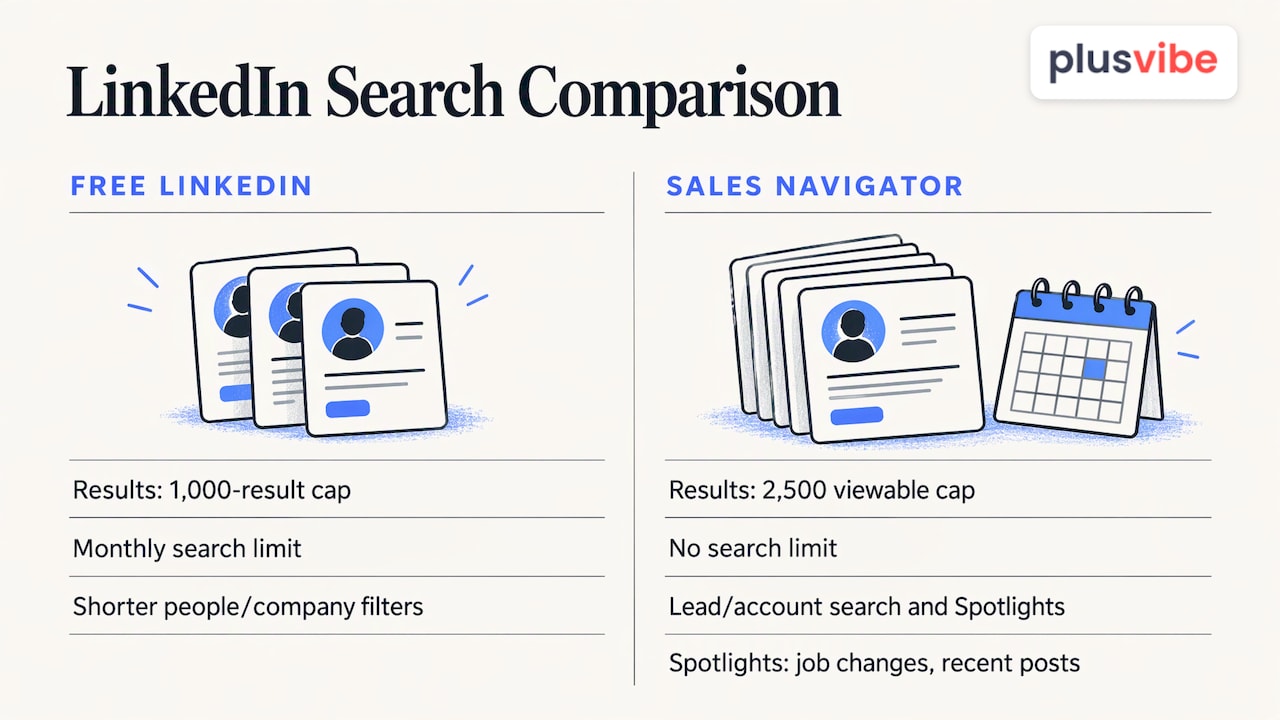
Standard LinkedIn search offers a shorter list of people and company filters. Sales Navigator adds separate lead and account search, structured function and seniority filters, job-change and posting filters, deeper firmographic criteria and saved searches.
The volume limits matter for planning. Free search is capped at 1,000 results and has a monthly limit. Sales Navigator raises the viewable cap to 2,500 results, removes the search limit and adds Spotlights such as “Changed jobs in past 90 days” and “Posted on LinkedIn in past 30 days”. Result counts are approximate, so treat the number on screen as a guide, not an exact count.
The order that builds a clean list: accounts first
There is a real debate about where to start. One coach quoted in LinkedIn’s own roundtable recap favors starting broad with industry and location and leaving job titles for last. Another LinkedIn Sales Blog contributor puts title first, alongside geography and company. A write-up comparing the two views notes that they agree the title filter is highly rated and disagree only on when to set it.
For teams that need volume and consistency, we recommend account first, because it makes the list reusable. The routine looks like this:
- Write your ideal customer profile as rules. Convert “mid-sized US software companies” into headquarters location, industry and headcount range.
- Run an account search with those filters. Exclude industries that keep leaking in.
- Check growth. Department headcount growth and company headcount growth help you rank accounts, as described in one account-based guide that refines the company set before saving it.
- Save the qualified accounts as an account list.
- Switch to lead search and apply that account list as a filter.
- Select current title variants, for example Founder, Co-Founder and CEO, and add function and seniority.
The benefit is that the same saved account list can feed several lead searches, one per buyer role, without rebuilding the company logic each time.
Cover the buying group, not one title
Gartner’s survey of 632 B2B buyers puts the buying group at five to 16 people across as many as four functions. A single title filter finds one of those people. Build two or three lead searches against the same account list, for example the economic buyer, the day-to-day user and a technical evaluator, and treat them as one campaign per account.
Worked example: US SaaS companies selling to founders
Suppose you sell a service to founders of small software companies.
Account search:
- Headquarters location: United States
- Industry: Software Development
- Company headcount: 11 to 50
- Spotlight: Job opportunities (a sign the company is growing)
- Exclude industries: IT Services and Staffing, if they keep appearing
Save the result as “US SaaS 11-50”. Keep the search narrow enough to land below the 1,000-account cap. One practitioner guide advises three to five filters, so account lists stay under 1,000 results. That is an expert recommendation, not a LinkedIn rule, but it matches how the cap behaves.
Lead search:
- Account list: US SaaS 11-50
- Current job title: Founder OR “Co-Founder” OR CEO
- Seniority: Owner/Partner, CXO
- Optional signal: Posted on LinkedIn in past 30 days
You now have a list of founders who fit, at companies that fit, with one reason to write now.
Boolean search inside the title filter
The title and keyword fields accept Boolean operators: uppercase AND, OR and NOT, quoted exact phrases and parentheses, with a maximum of 15 operators per query. A practical title string looks like this:
("Head of Growth" OR "VP Growth" OR "Growth Lead") NOT (intern OR assistant)
Use Boolean to cover title variants, and use the structured seniority and function filters to catch the titles you did not think of. They work as complementary layers, not substitutes.
Exclusions, saved searches and lists
Exclusions are where lists get clean, but they are not available everywhere. Exclusion applies to Company, Seniority level, Title, Function and School for leads, and Geography and Industry for both leads and accounts. You apply it with the block icon. Most other filters are include-only. Saved lead lists can also act as exclusions, so you can find people you have not contacted yet.
A repeatable system has four habits:
- Name saved searches by segment and date, for example “US SaaS founders 11-50, Nov”.
- Turn on alerts so new matches reach you without rerunning the search.
- Keep one account list per segment and one lead list per buyer role.
- Use saved lead lists as exclusions so two teammates never contact the same person.
Once the list exists, follow-up matters as much as the first message. Our reading on lead nurturing strategies is a good companion for planning what happens after the first touch.
Using Spotlights and signals without over-filtering
Attribute filters tell you who fits. Spotlight filters tell you when to write. Spotlights are a weak filter on their own, so cut with fit filters first, then sort with signal filters, and layer one signal rather than four.
The signals most useful for outreach:
- Changed jobs recently. New leaders often review tools and vendors.
- Posted on LinkedIn recently. An active person is more likely to notice you, and the post gives you something specific to reference.
- Shared connections or experiences. One guide suggests using shared experiences and second-degree connections for warm paths and the “active within the last 30 days” filter to find active prospects.
- Buyer intent. This is an aggregated score from more than 180 insight signals, and the lead filter surfaces people at accounts showing high or moderate interest in the past 30 days. It requires Advanced or Advanced Plus.
False positives are common with people who hold several current roles. The same write-up flags this, so scan titles before you export a segment.
Scaling without losing relevance
The mistake at scale is one huge query. Build several focused segments instead: one per industry, headcount band or buyer role. Each segment gets its own message, which is what keeps replies relevant. If a segment returns thousands of results near the cap, split it by geography or headcount. If it returns a few dozen, widen one filter, not three.
Before you hand any segment to outreach, qualify it. Our lead qualification checklist lists six steps to run on a sample before the full send, and the guide on managing sales leads covers keeping that data organized afterward. For a wider view of channels, see top sales prospecting methods.
From filtered list to inbox
A Sales Navigator list gives you names, titles and companies. Cold email needs more: a working address, clean data and a sending setup that does not damage your domain. That is where lists often fail. A filter-perfect segment that is sent from a burned domain, or with a pile of invalid addresses, never gets read.
The workflow we recommend:
- Collect the filtered prospects from LinkedIn and the web. Our Chrome extension handles LinkedIn and web prospect collection.
- Enrich the records with lead enrichment, so each prospect has the fields your personalization needs.
- Verify every address with email verification before sending.
- Send through multi-step sequences on warmed inboxes, and check where messages land with seed tests and deliverability monitoring.
- Handle replies in one unified inbox, with an AI Reply Agent available.
If you need to move records out of Sales Navigator into your CRM, our guide to exporting Sales Navigator data walks through getting a clean file.
Why we built it around the inbox
Filters get all the attention because they are visible. You can see the result count drop as you add a seniority filter. The inbox is invisible, and that is why it costs agencies so much.
We built PlusVibe on the idea that the inbox is decided before you hit send. Each client on the Agency plan gets its own sending server and dedicated IPs, so one client’s mistake never touches another’s reputation. Every customer warms up in one private pool, with bad senders removed and every inbox re-checked over time. Its peak warm-up bounce rate has never exceeded 0.1%.
And we believe in receipts over vibes. Seed tests show where your real campaign emails land at Gmail, Outlook and other providers, so you judge placement on evidence, not a dashboard score.
Cold outreach is honest work when it follows a code: relevant, honest, respectful, measured. A tight Sales Navigator segment is the first half of that code. Sending it well is the second.
Yaro
Take your Sales Navigator list into outbound
PlusVibe plans start at $37/month, Business is $77/month for 150,000 emails, and Agency starts at $497/month for 500,000+ emails, with no fee per connected mailbox. Every plan starts with a 14-day free trial, no credit card required. Agencies get private infrastructure per client, and done-for-you Google Workspace, Microsoft 365 and Azure mailboxes are available. Plans and mailbox pricing are on our plans page.
If you send a couple hundred emails a month, a simpler tool will serve you fine. If your pipeline depends on the inbox, start with a segment you built above and judge us on placement.
FAQ
How many filters should I use in one Sales Navigator search?
Three to five is a sound range for account lists, according to practitioner advice. It keeps results under the 1,000-account cap and the list relevant. Add one timing signal on top, and split the segment instead of piling on more filters.
Can I exclude certain results in Sales Navigator?
Yes, for some filters. Exclusion works on company, seniority, title, function and school for leads, and on geography and industry for both leads and accounts. You apply it with the block icon, and saved lead lists can also act as exclusions.
How many results can one search show?
A single search shows up to 2,500 leads or 1,000 accounts, and LinkedIn describes the counts as approximate. If a segment hits the cap, split it by geography, headcount or role.
Are buyer intent filters available on every plan?
No. Buyer intent and the “viewed your Company Page recently” filter are limited to Advanced and Advanced Plus. Check your plan before building a search around them.
Sources
- LinkedIn Advanced Search: Filters on Free, Premium and Sales Navigator
- LinkedIn Sales Navigator Search Filters: The Full List
- Sales Navigator filters: how to find the right B2B buyers
- Building High-Quality LinkedIn Sales Navigator Lists
- How to Turn an ICP Into Prospecting Filters and Exclusions
- How salespeople should be using LinkedIn Sales Navigator daily
- How to use LinkedIn Sales Navigator to generate leads
- LinkedIn Sales Navigator Price 2026: Plans and Is It Worth It