.jpeg)
Zapier email automation connects a trigger, like a new form submission or CRM lead, to an email action that sends, tags, or routes a message without you touching it. The fastest win to build first is a “new lead to personalized welcome email plus CRM tag” Zap, which takes minutes to set up in Zapier and pays off immediately. Pairing that workflow with a platform like Plusvibe for deliverability and follow-up turns a simple trigger into a dependable outreach engine.
TL;DR:
- Email by Zapier works for quick tests, while Gmail, Outlook, or SMTP sends from your address; check plan limits before building high volume workflows.
- If your email program already runs inside one marketing platform, its native automation may be simpler for basic drip sequences without outside triggers.
- Verify addresses, pace bursts with delays, warm new sending addresses gradually, and set alerts for bounces or failures before expanding beyond a small test.
- Zapier can schedule later messages or route replies by keyword, but full sequences with reply detection require dedicated outreach software.
- Keep a single Zap for simple workflows under a few dozen emails daily; move to specialized sending and monitoring as volume or deliverability demands grow.
Table of Contents
- How Zapier email triggers and actions actually work
- Why automate email with Zapier in the first place
- 6 Zap recipes worth copying today
- Building a personalized outreach Zap step by step
- Keeping automated email safe, clean, and compliant
- How PlusVibe.ai extends a Zapier email workflow
- Handling replies and follow-up sequences without losing track
- Enriching leads and verifying emails before you ever hit send
- Tracking what your automated campaigns actually deliver
- Rotating inboxes and dedicated IPs for Zapier-triggered sends
- When a Zap is enough and when it isn’t
- Get Zapier-triggered emails that actually land and get replies
- FAQ
- Sources
- Useful sources
How Zapier email triggers and actions actually work
Every Zap starts with a trigger (an event, like a new Google Sheets row, a Typeform submission, or a new CRM lead) and ends with one or more actions (sending an email, updating a record, posting to Slack). Zapier watches the trigger app, catches the event, and passes its data into the action step.
Mapping fields is where personalization happens: you pull a contact’s first name, company, or deal stage from the trigger and drop it into the subject line or body of the email action. Multi-step Zaps let you chain several actions together, and paths let you branch logic (send a different email if the lead is “high value” versus “cold”). Filters stop a Zap from firing unless certain conditions are met, and delays let you schedule a follow-up for a day or two later instead of firing instantly.
For the email action itself, you generally pick one of three routes:
- Email by Zapier for quick, no-login sending, though free plans cap how many you can send.
- A connected Gmail, Outlook, or SMTP account for mail that looks like it came straight from your inbox.
- An ESP’s API action (Mailchimp, ActiveCampaign) when you want the email to live inside a marketing sequence.
Action counts and send limits vary by Zapier plan, so check your plan’s monthly limit before building a high-volume Zap.
Why automate email with Zapier in the first place
The appeal is straightforward: a trigger fires once and the same personalized, correctly formatted email goes out every time, with none of the copy-paste errors that creep into manual sends. That consistency matters most when leads come in around the clock and a slow reply costs you the deal.
- Marketing teams use triggers to launch drip sequences the moment someone downloads a guide or joins a list.
- Sales teams use CRM-triggered Zaps to get a personalized first touch out before a competitor does.
- Operations teams use email triggers to route alerts, confirmations, and internal notifications without a human in the loop.
A practical pattern worth copying: syncing form submissions straight into an email list and triggering abandoned-cart reminders are two of the most common Zapier email recipes, because they close the gap between an action a visitor takes and the follow-up they expect to see, according to EmailToolTester’s rundown of Zapier email automations.
One caveat: if your email program lives mostly inside a single ESP already, that platform’s native automation may be simpler than wiring a Zap, especially for straightforward drip sequences with no outside triggers.
6 Zap recipes worth copying today
- Form submission to welcome email and CRM tag. A new Typeform or Google Form entry triggers a personalized welcome email and simultaneously creates or tags a CRM contact, so marketing and sales see the same lead at the same moment.
- New CRM lead to AI-drafted outreach to scheduled follow-up. A new lead record triggers an AI email-drafting step, then a delayed action schedules a follow-up two or three days later if there’s no reply.
- Abandoned cart to reminder email and remarketing list. An e-commerce cart event sends a reminder email and adds the shopper to a remarketing list, catching intent before it cools off.
- Unsubscribe to opt-out sync across tools. When someone unsubscribes in one platform, a Zap pushes that opt-out to every connected list and CRM, keeping your suppression list consistent everywhere, which EmailToolTester flags as a core use of Zapier’s email-syncing automations.
- Inbound reply keyword to Slack alert and CRM update. A reply containing words like “unsubscribe” or “interested” routes to a Slack channel and updates the deal stage automatically.
- New row in a spreadsheet to a batch of personalized sends. Useful for small teams running manual outreach lists who want personalization tokens without hand-writing each email.
Each recipe follows the same shape: one trigger, one or two mapped fields, and an action that removes a manual step you’d otherwise repeat daily.
Building a personalized outreach Zap step by step
Here’s how to build recipe two above, a CRM lead that triggers a personalized email, from scratch.
- Pick your trigger app and event. Choose “New Lead” in your CRM (or “New Row” in Google Sheets if you’re tracking leads manually) as the trigger.
- Connect the account. Zapier will prompt you to log in or paste an API key; most modern CRMs use OAuth, so you just approve access in a popup.
- Choose your email action. Select Email by Zapier for a quick test, or a connected Gmail/Outlook account if you want the email to send from your real address.
- Map the fields. Drag the lead’s first name, company, and any custom field into the subject and body using Zapier’s field picker, never typed manually.
- Preview with sample data. Zapier pulls a real record from your trigger app so you can confirm the email reads naturally before anything sends.
- Add a filter or delay if needed. For example, only continue if “lead score” is above a threshold, or wait one hour before sending.
- Test the Zap. Run a live test send to your own inbox and check formatting, personalization tokens, and links.
- Turn it on and monitor the task history. Zapier’s task history log shows every run, which is where you’ll spot a failed field mapping or an authentication hiccup.
Pro Tip: Run your first 24 hours on a small, hand-picked sample list before pointing the Zap at your full contact base, so a mapping error affects five people instead of five hundred.
Before calling it done, double-check four things: that your email account’s authentication hasn’t expired, that every token resolves to real data (no “Hi {{first_name}}” in a live send), that you’re within your plan’s monthly action limit, and that you’ve got a way to see bounces and failures after the Zap is live.
Keeping automated email safe, clean, and compliant
Automation makes it easy to send fast, which also makes it easy to send badly. A few habits keep that from happening.
- Verify email addresses before a Zap adds them to a sending list, since Zapier will happily fire an email at a dead address.
- Add pacing or delays so a trigger that fires fifty times in a minute doesn’t blast fifty emails from the same inbox at once.
- Warm up any new sending address gradually, and lean on dedicated sending infrastructure once volume climbs past a few dozen emails a day.
- Build a simple alert Zap that flags bounces, spam complaints, or failed sends so a broken automation doesn’t run silently for a week.
- Keep unsubscribe handling synced across every connected tool so a suppressed contact in one system stays suppressed everywhere.
Verifying addresses and pacing sends are two of the most repeated best practices across Zapier how-to guides, cited specifically for reducing bounces and preserving sender reputation, per EmailToolTester. For list hygiene specifically, our own list management guidance covers how to keep suppressions and segments in sync as your contact base grows.
How PlusVibe.ai extends a Zapier email workflow
A Zap gets an email out the door, but it doesn’t control whether that email lands in the inbox or the spam folder, and it doesn’t manage what happens after someone replies. That’s the gap we built PlusVibe.ai to close.
- Warm-up infrastructure that builds sender reputation before you start a Zapier-triggered campaign.
- Deliverability monitoring that flags inbox placement problems before a send is impacted.
- Integrations with common email platforms, so a CRM trigger can hand off into a managed follow-up sequence.
- Follow-up sequencing features that keep a conversation moving after the first automated touch.
A typical combined flow looks like this: a Zapier trigger fires on a new lead, hands the contact into a sequence, and the platform handles the follow-up cadence and inbox placement checks from there. We add the most value exactly where Zapier’s job ends, in isolated sending, managed warm-up, and inbox placement testing. Our automation page and follow-up page walk through setup for readers who want to connect the two.
Handling replies and follow-up sequences without losing track
A Zap that sends a first email is only half the job. The other half is knowing who replied, who went quiet, and when to nudge them again, and that’s where most Zapier-only setups start to strain.
A workable pattern: route inbound replies through a keyword filter (interested, not now, unsubscribe) and branch the Zap accordingly, pushing “interested” replies to a Slack channel for a human to pick up and silence the automation for anyone who opted out. For contacts who haven’t replied at all, a delayed follow-up action, fired three or four days after the first touch, keeps the conversation alive without manual tracking.

The limitation shows up at scale: Zapier can detect a reply and trigger a next step, but it doesn’t manage an entire sequence of timed follow-ups with reply detection built in the way a dedicated outreach platform does. That’s why many teams use Zapier for the first trigger and handoff, then let a sequencing tool carry the follow-up cadence. Our own follow-up automation feature is built around exactly this handoff, picking up where a single Zapier trigger leaves off and running the multi-step cadence automatically, including stopping the sequence the moment someone replies.
Enriching leads and verifying emails before you ever hit send
An email automation is only as good as the data behind it. A Zap can trigger the moment a new lead appears, but if that lead record has a guessed or outdated email address, the entire sequence bounces before it starts.
Adding an enrichment step between your trigger and your email action fills in missing details, like job title, company size, or a verified email address, using AI-driven lookups instead of manual research. This matters most for sales outreach Zaps, where a personalized first line depends on knowing more than just a name. Pairing enrichment with verification means your Zap only proceeds to the email action when the address is confirmed deliverable, which cuts down on the bounces that damage sender reputation over time.
Our own enrichment tools are built to slot into exactly this stage of a workflow, sitting between a Zapier trigger and the actual send so that every automated email goes to a real, verified inbox instead of a guess. For teams running high lead volume through Zapier, this single step often prevents more deliverability damage than any amount of pacing or delays downstream.
Tracking what your automated campaigns actually deliver
Once a Zapier-triggered campaign is running, the next question is whether it’s working: who opened, who clicked, who bounced, and where. Zapier itself can route this data (a new “open” event, a bounce notification) into a spreadsheet or dashboard, but it won’t tell you why deliverability dipped on a given day.
Combining a Zapier alert Zap (bounce or complaint triggers a Slack notification) with a platform-level analytics view gives you both layers: the immediate operational alert and the broader pattern. Looking at open rates, reply rates, and inbox placement together, rather than any single metric alone, is what actually tells you whether a sequence needs a rewrite or just a longer warm-up period.
Deliverability monitoring can track inbox placement and bounce patterns across connected inboxes, and when combined with a Zapier alert for real-time anomalies, provide a complete picture. That combination matters most for teams running multiple campaigns at once, where a problem in one inbox can otherwise hide inside aggregate numbers for days before anyone notices.
Rotating inboxes and dedicated IPs for Zapier-triggered sends
Sending every automated email from one inbox is the fastest way to trip spam filters once volume climbs. Inbox rotation spreads sends across multiple connected addresses, so no single inbox absorbs the full daily load a Zap generates.
A Zapier trigger can hand off to a rotation-aware sending layer rather than a single hardcoded “from” address, distributing load automatically as volume grows. Pairing that rotation with dedicated connector IPs, rather than shared sending infrastructure, keeps your sender reputation isolated from other senders who might be sending riskier content from the same pool.
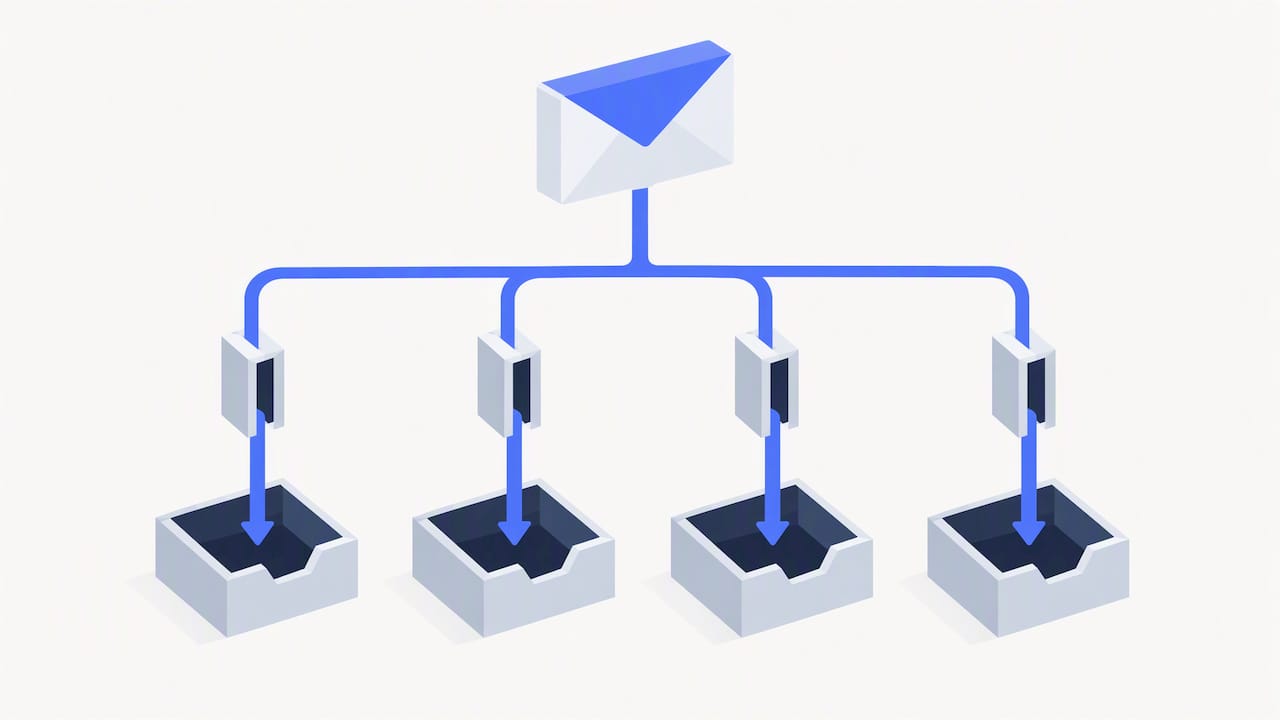
This is where isolated sending infrastructure and dedicated connector IPs can plug directly into a Zapier-triggered workflow: once a lead or campaign event fires in Zapier, the actual send gets distributed across warmed, rotated inboxes rather than funneled through one address. For anyone running outbound at real volume, that’s the difference between a Zap that works for a week and one that keeps working for a year. Our email warm-up setup is where this rotation and IP isolation starts.
When a Zap is enough and when it isn’t
A single Zap is the right call under a few dozen emails a day, with simple logic and no need for reply tracking across a sequence. Once volume climbs, deliverability becomes a daily concern, or you need multi-step follow-ups with reply detection, a specialist platform or a managed setup earns its keep. For a structured rollout plan as you scale past basic triggers, Babylovegrowth is a useful next read.
— Yaro
Get Zapier-triggered emails that actually land and get replies
If you’ve built the Zaps in this guide, the next bottleneck is rarely the trigger, it’s deliverability and follow-up. We built PlusVibe.ai around private warm-up infrastructure, isolated sending, and automated follow-up sequencing specifically so a Zapier trigger has somewhere reliable to hand off.
Start with a free trial and connect your existing Zapier triggers to a Plusvibe plan built for the volume you’re actually sending, or explore our automation features to see the full follow-up and warm-up setup in action.
FAQ
What is the easiest first Zapier email automation to build?
A form submission that triggers a personalized welcome email and tags the contact in your CRM is the simplest high-value Zap to start with, since it needs only one trigger and two mapped fields. It also gives you an immediate way to confirm field mapping works before building anything more complex.
What’s the difference between Email by Zapier and a connected Gmail account?
Email by Zapier sends without requiring you to log into an email account, but it carries stricter send limits, especially on free plans. A connected Gmail, Outlook, or SMTP account sends from your real address and generally supports higher volume, which matters once a Zap moves beyond testing.
How do I stop a Zapier email automation from hurting deliverability?
Verify addresses before a Zap sends to them, pace sends with delays rather than firing in a burst, and warm up any new sending address gradually, practices repeated across Zapier email automation guides. Pairing a Zap with dedicated warm-up and monitoring, such as the setup in Plusvibe, reduces the risk further as volume grows.
Can Zapier handle follow-up sequences, not just a single email?
Zapier can trigger a delayed follow-up action or branch based on a reply keyword, but it doesn’t manage a full multi-step sequence with built-in reply detection the way a dedicated sequencing platform does. Many teams use Zapier for the initial trigger and handoff, then let a platform like our own follow-up automation carry the rest of the cadence.
Useful sources
- EmailToolTester’s guide to Zapier email automation: practical recipes and best practices.