DMARC reports are automated files that receiving mail servers send to an address you choose, telling you who is sending email as your domain and whether those messages passed authentication. Aggregate reports (RUA) are the ones that matter day to day: daily XML summaries you can use to find legitimate senders, catch spoofing, and move your policy from monitoring to enforcement. Forensic reports (RUF) are message-level failure reports that most big providers rarely send.
This guide explains how to turn on reporting, what is inside a report, how to read one by hand, and how to use the data without drowning in it.
Key takeaways
- Aggregate reports (RUA) are daily XML summaries of authentication results per sending IP. They are the foundation of DMARC monitoring.
- Forensic reports (RUF) describe individual failed messages, but support among major mailbox providers is limited, so do not build your process on them.
- You request reports by adding
rua=(and optionallyruf=) with amailto:address to your DMARC TXT record. - Raw XML does not scale. Use a dedicated mailbox and a parser or analysis tool, and read the data before you tighten your policy.
- Sending reports to an address on another domain requires an extra DNS authorization record at that domain.
Table of Contents
- What a DMARC report is
- Aggregate vs. forensic reports
- How to start receiving DMARC reports
- What is inside an aggregate report
- How to read a report, step by step
- Why raw XML does not scale
- From p=none to enforcement
- Common mistakes with DMARC reports
- Our perspective: reports are a deliverability tool, not just a security one
- Where PlusVibe fits
- FAQ
- Sources
What a DMARC report is
DMARC (Domain-based Message Authentication, Reporting, and Conformance) lets you tell receiving servers what to do with mail from your domain that fails SPF or DKIM checks. The “reporting” half is the feedback loop: receiving servers send reports to the servers that get email from your domain, and Google recommends monitoring the daily reports regularly.
That feedback answers questions you cannot answer from your own sent folder:
- Which IP addresses and services are sending mail with your domain in the From header?
- Do those messages pass SPF and DKIM, and do the results align with your From domain?
- What did the receiving server do with the failures?
- Is someone spoofing your brand?
If you have ever added a new sales tool, newsletter service or help desk and forgotten to authenticate it, DMARC reports are how you find out. If you are still setting up the underlying records, our guide to SPF, DKIM and DMARC covers the basics first.
Aggregate vs. forensic reports
There are two types, and they behave very differently.
| Aggregate (RUA) | Forensic / failure (RUF) | |
|---|---|---|
| DNS tag | rua= |
ruf= |
| Content | Statistical summary per sending source | Details about an individual failed message |
| Frequency | Usually once a day | Per failure |
| Format | XML, often compressed | Email-style report |
| Provider support | Widely supported | Limited |
| Best use | Trend analysis, finding senders, hardening policy | Occasional troubleshooting, where available |
Google’s documentation states that aggregate reports summarize authentication results, while forensic reports give message-level failure details, and that forensic reports have limited support across major mailbox providers. The IETF’s failure reporting draft describes them as reports on the failure of a single message or a group of similar messages, meant to help when aggregate data is not enough to explain why failures happen.
In practice, forensic reports are widely treated as a real-time debugging tool, yet Gmail and Outlook rarely send them because of user privacy concerns. You can add a ruf= tag, but plan as if you will never see one. Aggregate reports are what practitioners rely on for trend analysis and for safely hardening policy.
How to start receiving DMARC reports
Reporting is switched on in the DMARC record itself, a DNS TXT record published at _dmarc.yourdomain.com. Add rua= for aggregate reports or ruf= for forensic ones, each with a mailto: address. A starter record for monitoring only looks like this:
v=DMARC1; p=none; rua=mailto:dmarc-reports@yourdomain.com
Steps:
- Create a dedicated mailbox or group alias. Reports arrive from every provider whose users received your mail, and high-volume senders can get hundreds or thousands of files. Google’s guidance suggests a dedicated mailbox or alias so your main inbox stays usable.
- Publish the record. Add or edit the TXT record at
_dmarcon your domain. Keepp=nonewhile you are only collecting data. - Wait a day or two. Providers typically send aggregate reports once daily, and reporting frequency is not guaranteed. Some smaller providers send nothing at all.
- Check that reports arrive. If nothing shows up after several days of real sending volume, recheck the record syntax and the mailbox address.
Sending reports to another domain
Many teams point reports at a monitoring service or a central mailbox on a different domain. That works only if the receiving domain agrees. A DNS TXT authorization record is needed at the receiving domain, and without it many major servers will refuse to send reports there, often with no clear error. The reasoning is explained in a DMARC.org note on receiving reports outside your domain. If you use a third-party analyzer, it will normally tell you exactly which record to publish.
What is inside an aggregate report
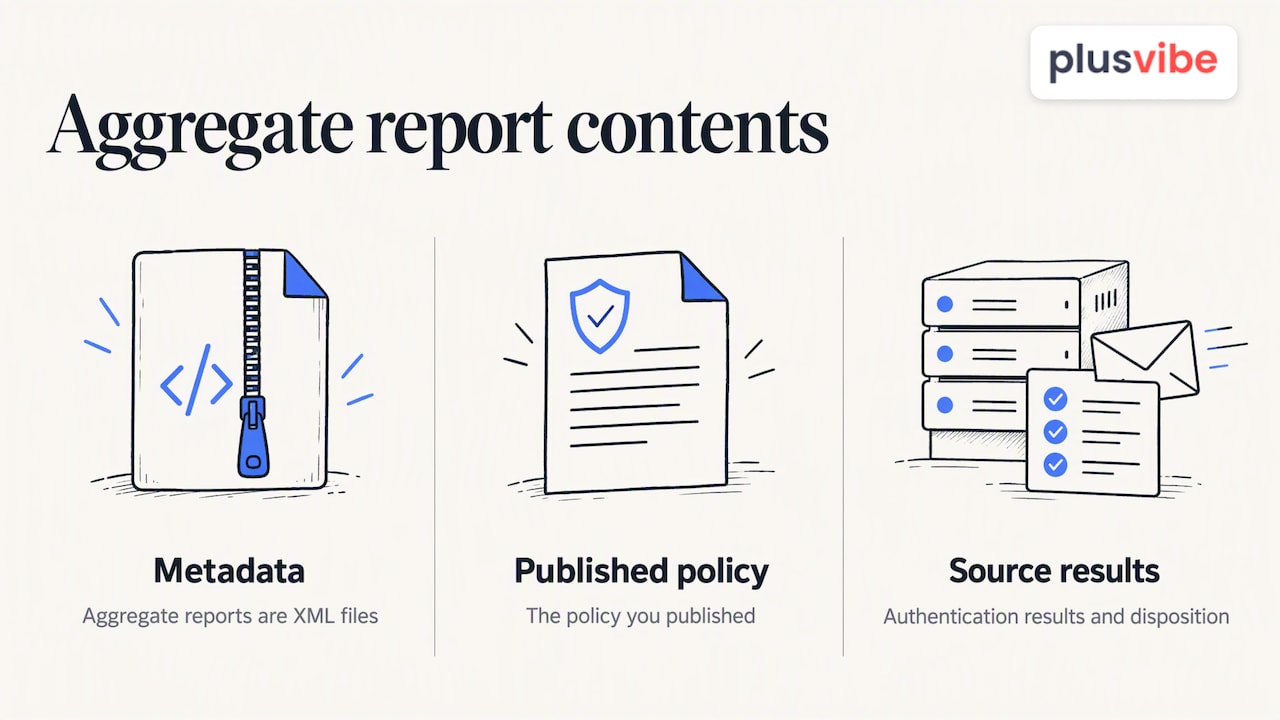
Aggregate reports are XML files, often GZIP or ZIP compressed. The structure has report metadata, the policy you published, and records summarizing source IP authentication results and disposition. Here is how to read each part.
Report metadata
This block names the organization that generated the report (for example, a mailbox provider), a contact address, a unique report ID, and the date range covered, expressed as Unix timestamps. Its main job is to tell you whose view of your mail you are looking at. Gmail’s report shows what Gmail saw, and nobody else’s.
Policy published
This repeats your DMARC policy as the receiver found it: the domain, the policy (none, quarantine or reject), alignment modes for SPF and DKIM, and the percentage applied. Check it first. If the policy shown differs from what you think you published, you have a DNS problem or a stale record.
Records
Each record is one row per sending source and result combination. The fields to focus on:
- source_ip: the server that sent the mail.
- count: how many messages came from that IP in the period.
- disposition: what the receiver did (none, quarantine or reject).
- dkim and spf results (policy_evaluated): whether each check passed with alignment, which is what DMARC actually evaluates.
- header_from: the domain in the visible From address.
- auth_results: the raw SPF and DKIM outcomes, including the domains that were checked.
The distinction between policy_evaluated and auth_results trips people up. A message can pass SPF for the sending service’s own domain while failing DMARC because that domain does not align with your From domain. That is the most common reason a legitimate tool appears as a failure in your reports.
DMARC passes when at least one of SPF or DKIM passes and aligns. So a row with SPF fail but DKIM pass and aligned is fine. A row where both fail alignment is the one that needs attention.
How to read a report, step by step
You can open an XML file in any text editor, though it is slow. A reliable routine:
- Confirm the published policy matches your DNS record.
- Sort the records by volume. Start with the IPs sending the most mail.
- Identify each IP. Run a reverse lookup or check the sending service’s documentation. Group them: your mail platform, your CRM, billing system, support desk, marketing tool, cold outreach infrastructure.
- Mark each source as legitimate or not. Legitimate sources that fail need fixing. Unknown sources that fail are possible spoofing.
- Fix alignment on legitimate sources. Set up custom DKIM signing with your domain, and configure a custom return-path where the service supports it.
- Repeat for a few weeks until your legitimate mail passes consistently.
A worked example. Imagine one day’s report from a mailbox provider shows three rows for your domain:
| Source | Count | SPF | DKIM | Verdict |
|---|---|---|---|---|
| Your main mail platform | 1,200 | pass, aligned | pass, aligned | Healthy |
| Your invoicing tool | 85 | pass, not aligned | fail | Needs custom DKIM |
| Unrecognized IP | 40 | fail | fail | Investigate as possible spoofing |
The numbers are illustrative, not from a real report. The point is the triage: one row is fine, one is a fixable configuration gap, and one is a question you need to answer before enforcing anything.
Why raw XML does not scale
One report per provider per day sounds manageable until you add multiple domains, subdomains and several sending tools. Experts describe this firehose of reports as a real barrier for small businesses: without automated parsing, the data is too overwhelming to act on.
An analysis tool does three jobs for you:
- Parses and stores every incoming file so you do not read XML.
- Aggregates by source so you see one line per sending service rather than one per report.
- Highlights gaps between what passes and what fails, so you know what to fix.
Whichever tool you choose, check two things: that it gives you the authorization record needed for external report delivery, and that it lets you view data over weeks, not just single days. Free parsers are fine for a quick look at one file. For ongoing monitoring you want history.
From p=none to enforcement
DMARC reports exist so you can tighten your policy with confidence. Aggregate data lets you move from monitoring to strict enforcement because you can tell legitimate senders from unauthorized ones. A sensible path:
- Monitor at
p=noneuntil every legitimate source you know of is passing and aligned. - Move to
quarantine, ideally with a partial percentage first, and keep reading reports for new failures. - Move to
rejectonce the reports show nothing legitimate failing.
Do not skip the monitoring phase. Going straight to reject risks blocking your own invoices, password resets and sales emails. We cover what to set and when in our article on DMARC policy before scaling outbound.
The same data supports other goals. BIMI (Brand Indicators for Message Identification) builds on existing DMARC aggregate reporting rather than inventing a new mechanism, so a clean reporting history is useful well beyond spoofing protection. Once your authentication is enforced, your CRM and nurture automation can send from a domain that receivers have good reason to trust.
Common mistakes with DMARC reports
- Pointing reports at your personal inbox. You will stop reading them within a week.
- Forgetting the external authorization record. Reports to a third-party address silently never arrive.
- Relying on
ruf=. Major providers rarely send forensic reports, so an empty forensic inbox tells you nothing. - Treating one provider’s report as the whole picture. Each receiver reports only its own traffic.
- Enforcing too early. A sender you forgot about, such as a billing tool, will start bouncing.
- Ignoring subdomains. Cold outreach or marketing sent from a subdomain still needs its own review.
Our perspective: reports are a deliverability tool, not just a security one
We build infrastructure for cold email, so we see DMARC reports from a specific angle. Teams often treat them as a compliance checkbox: publish p=none, forget the mailbox, move on. Then outbound results slip and nobody can say why.

The reports are the earliest, cheapest signal that something about your authentication has drifted. A new sending domain with misaligned DKIM, a connected tool signing with the wrong domain, or a forgotten service still sending in your name all show up there before they show up as lost replies. That is why we pair authentication checks with ongoing deliverability monitoring rather than treating setup as a one-time job.
Our advice for outbound teams is simple. Authenticate each sending domain properly, keep your cold outreach separate from the domain that carries invoices and customer mail, read your aggregate data weekly, and only then raise your policy. Authentication does not replace good list hygiene or a clean sending reputation, but without it nothing else holds. If you want the wider picture, our email deliverability checklist puts DMARC in context.
— Yaro
Where PlusVibe fits
DMARC reports tell you whether your authentication is right. PlusVibe helps with the sending side: private warm-up, isolated sending infrastructure, inbox rotation and deliverability monitoring for cold outreach, plus managed email setup if you would rather not configure domains yourself. You can start with a free trial and compare options on our plans page. If you want the domains and inboxes configured for you, see done-for-you email setup.
FAQ
Why am I getting DMARC reports?
Because a DMARC record on your domain, or one a colleague or vendor published, includes a rua= or ruf= address pointing to your mailbox. Receiving servers then send you summaries of mail they saw using your domain. Check the DNS record at _dmarc.yourdomain.com to see who requested them and where they go.
Do I need to read every DMARC report?
No. You are not meant to read individual files. Send them to a dedicated mailbox or an analysis tool, and review the aggregated view regularly, especially after adding a new sending service or before changing your policy.
How do I see DMARC reports for my domain?
Publish a DMARC record with a rua= tag pointing to a mailbox you control, then wait for providers to send their daily files. Open the XML attachments directly or upload them to a parser. If you use an address on another domain, publish the authorization record there first.
Can I get forensic reports from Gmail?
In general, no. Google’s documentation notes that forensic reports have limited support among major providers, and practitioners report that Gmail and Outlook rarely send them. Use aggregate reports as your main source of data.
Sources
- About DMARC reports, Google Workspace Admin Help
- About DMARC reports, Google Workspace Help
- Set up DMARC in Microsoft 365, Microsoft Learn
- Receiving DMARC reports outside your domain, DMARC.org
- How to read a DMARC report, Resend
- DMARC failure reporting draft, IETF
- BIMI reporting draft, IETF