To ramp up sending safely, start with a small daily volume to people likely to engage. Raise it in small, steady steps, and let your bounce, deferral and spam-complaint numbers decide when to go higher. Google’s sender guidance says the same: increase gradually and consistently, and avoid bursts and sudden spikes. There is no universal emails-per-day number. There is a method, and this guide walks through it with a sample schedule you can adapt.
Key takeaways
- Treat a ramp as a feedback loop, not a calendar. Volume goes up only while bounces, deferrals and complaints stay low.
- Consistency beats intensity. Predictable daily sending gives mailbox providers cleaner signals than quiet weeks followed by a blast.
- Keep spam complaints under 0.3% at the very least. Google says to aim below 0.10%.
- Hold or step back at the first sign of deferrals (4xx responses). Throttling is a warning to fix something, not an obstacle to push through.
- Ramp each new domain, inbox or message format as its own segment, because reputation does not transfer cleanly.
Table of Contents
- Why providers punish sudden volume
- What Google, Yahoo and Microsoft expect
- Before day one: the pre-ramp checklist
- A sample ramp schedule for one new inbox
- Scale with more inboxes, not more messages per inbox
- Ramp each change separately
- Reading the signals: hold, slow or go
- How to throttle your own sending on purpose
- What to do when you get throttled
- Our perspective
- Ramp up with PlusVibe
- FAQ
- Sources
Why providers punish sudden volume
Mailbox providers know little about a sender that appears overnight with thousands of messages. Volume that jumps without warning looks like the pattern of a compromised account or a spam run, so they slow it down first and ask questions later.
That slowdown is called throttling. Microsoft’s Exchange documentation describes it as limits on message-processing rates, SMTP connection rates and session timeouts. These limits protect servers from overload, and they can leave messages waiting in a backlog. For a sender, this has a counterintuitive result: sending faster can lower throughput, because bursts hit the limits and queue up.
Throttling usually doesn’t arrive as a permanent block. Elastic Email’s help center notes that it can show up as delayed queue items, temporary deferrals or “try again later” responses. It also lists the usual causes to investigate before you increase volume: complaints, invalid or stale addresses, the reputation of your sending IP or domain, and message content.
So the goal of a ramp is to give providers enough steady, positive history to trust you at the volume you actually need.
What Google, Yahoo and Microsoft expect
Before you raise volume, get the basics in place. A ramp on a broken setup just scales the problem.
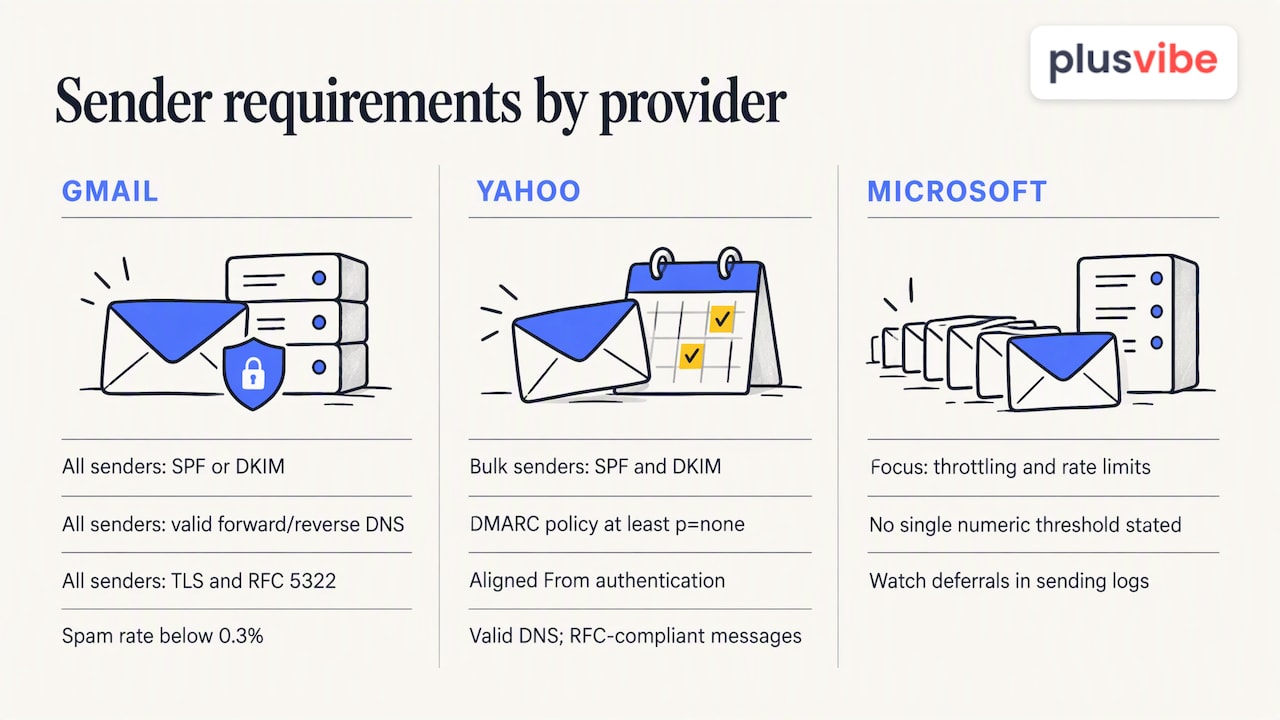
Gmail. Since February 1, 2024, Google requires all senders to Gmail to use SPF or DKIM, have valid forward and reverse DNS, use TLS, format messages to RFC 5322, and keep the spam rate in Postmaster Tools below 0.3%. Senders who go past 5,000 messages a day to Gmail also need SPF, DKIM and DMARC, an aligned From domain, and one-click unsubscribe on marketing messages.
Yahoo. Yahoo’s Sender Hub asks bulk senders for SPF and DKIM, a DMARC policy of at least p=none, aligned From authentication, valid DNS records, RFC-compliant messages, one-click unsubscribe and spam rates under 0.3%. Unsubscribes for promotional mail must be honored within 2 days.
Microsoft. Its public material focuses on throttling and rate limits rather than a single numeric threshold, so watch deferral messages in your own logs.
If you haven’t yet connected Google’s reporting, our guide to Postmaster Tools setup covers the DNS steps before Gmail shows any data. For the wider rules, see the new Gmail rules for bulk senders.
Before day one: the pre-ramp checklist
Run through this before you send a single campaign message:
- Authentication. SPF, DKIM and DMARC published and passing. Send yourself test messages and check the headers.
- Separate sending domain. Cold outreach should go from secondary domains, not your primary business domain, so a rough start never touches your main reputation.
- Monitoring. Postmaster Tools connected for Gmail, plus a way to see bounce codes and deferral messages for every inbox.
- A clean list. Verified addresses only. Cold lists decay, and stale addresses produce the bounces that stall a ramp.
- Warm-up running. Warm-up builds a baseline of replies and engagement before real campaigns start. Our complete warm-up guide explains how it works.
- A small, engaged first audience. The people most likely to open and reply go first.
On list quality, Elastic Email warns against mailing addresses untouched for more than a year and treats six months as the safer limit when re-engaging. If you build your own audience, this guide to growing an email list covers sourcing contacts that actually want to hear from you. For existing lists, our list hygiene checklist walks through eight steps to suppress risky addresses.
A sample ramp schedule for one new inbox
Google states that the right speed depends on how much you send, how often, and how recipients respond. It also says daily sending can be increased more quickly than weekly sending. That means any table is an illustration, not a rule. Below is a conservative starting plan for one new sending inbox that is also running warm-up. The numbers are our own working example, so adjust them to your results.
| Week | Campaign emails per inbox per day | What to watch |
|---|---|---|
| 1 | 5 to 10 | Bounces under 2%, no deferrals, replies arriving |
| 2 | 10 to 20 | Placement tests in the inbox, complaints near zero |
| 3 | 20 to 30 | Gmail spam rate flat, no 4xx responses |
| 4 | 30 to 40 | Stable reply rate, bounce rate still low |
| 5 onward | Hold at 40 or add inboxes | Review weekly before any further increase |
Two things matter more than the numbers:
- Step up in small increments. If you are sending 20 a day, move to 25, not 40. Google specifically warns against sudden doubling.
- Hold when you are unsure. Staying at a level for a few extra days costs almost nothing. Recovering from a damaged reputation can take weeks.
Some playbooks advise roughly doubling at each step. That can work when every signal is clean, but for a new cold-outreach domain a gentler slope leaves more room for error.
Scale with more inboxes, not more messages per inbox
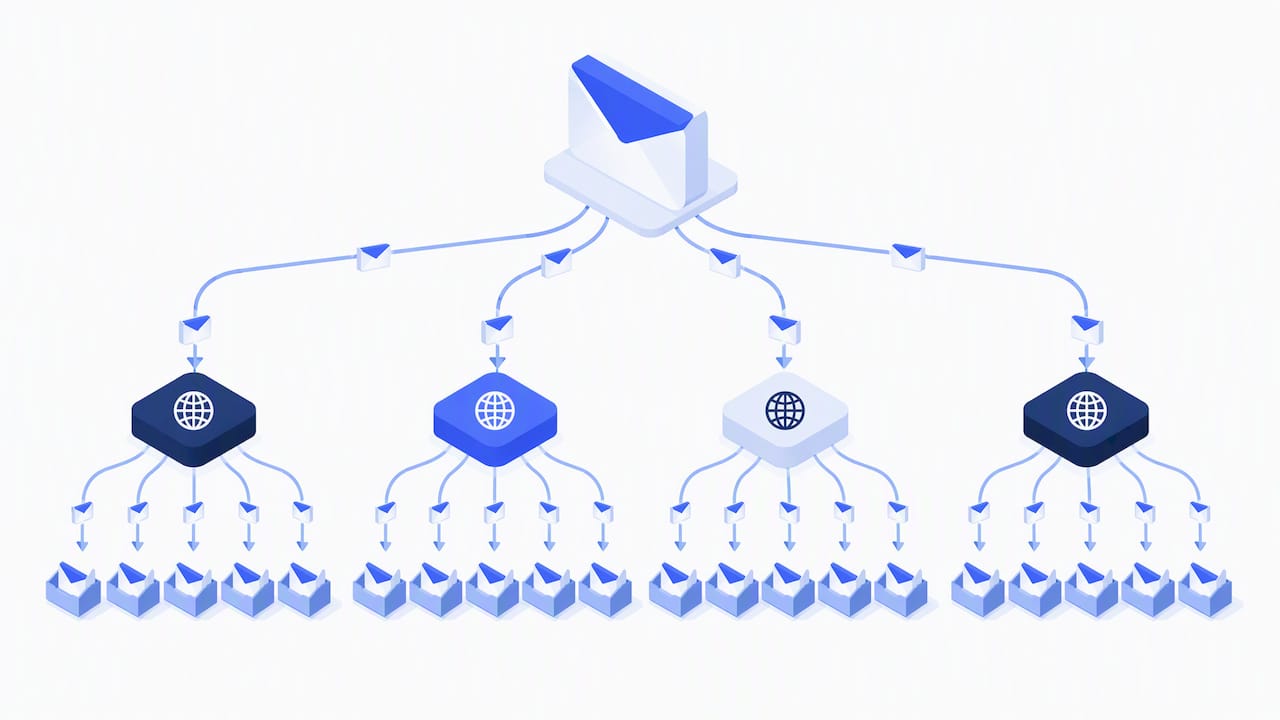
Once an inbox reaches a comfortable daily level, the safer way to grow is horizontal. Spread volume across more inboxes and domains, each ramped on its own track, instead of pushing one inbox harder.
This is where inbox rotation helps. A campaign draws on a pool of inboxes, so each one sends a modest, steady amount while the total grows. If you send to 600 prospects a day and each inbox holds at 30, you need 20 healthy inboxes. Spread them across several domains so one problem doesn’t take down everything.
Keep in mind that Google notes limits for Workspace work and school accounts can apply across recipient domains when those domains resolve to Google MX infrastructure. Don’t assume every recipient domain has its own independent quota. Group your monitoring by provider as well as by domain. Our breakdown of Google and Microsoft sending limits goes deeper on the account-level ceilings.
Ramp each change separately
Reputation attaches to your domain, your IP and your message patterns. When any of these change, treat the new setup as its own ramp:
- A new domain or inbox.
- A move to a different sending infrastructure or IP.
- A major change in headers, templates or link tracking.
- A new audience segment with very different engagement, such as moving from warm leads to purchased cold data.
Google recommends increasing modified traffic separately after significant changes to infrastructure or email headers, because reputation signals don’t automatically carry over. In practice: keep the old, healthy stream running at its normal level, and ramp the changed stream alongside it from a low starting point.
Reading the signals: hold, slow or go
A ramp is decided by measurements. Check these daily at first, then weekly once you are stable.
| Signal | Healthy | Action if it turns |
|---|---|---|
| Spam rate in Postmaster Tools | Under 0.10% | Google says to avoid reaching 0.30% or higher. Pause increases and review the audience and copy |
| Hard bounces | Low and stable | Verify the list again and remove bad addresses before the next step |
| 4xx deferrals | None or rare | Hold volume, then reduce until deferrals stop |
| Placement tests | Inbox, not spam | Return to the previous volume and look at content and authentication |
| Replies and opens | Steady or rising | A sudden drop is an early warning that mail is landing in spam |
Google’s guidance is to monitor server responses, spam rate and domain reputation while volume rises, to reduce volume when bounces or deferrals appear, and to resume increases only after SMTP error rates decline. To set up routine checks, use our 30-minute weekly deliverability audit, and read about deliverability monitoring to catch drops before they become a three-week problem.
Google describes the spam rate as the share of messages delivered to engaged recipients’ inboxes and then marked as spam, per its Postmaster Tools dashboard documentation. One implication: because it counts only mail that reached the inbox, a low number can hide a bigger problem if much of your mail is already going to the spam folder. That’s why placement testing belongs next to Postmaster data.
How to throttle your own sending on purpose
Throttling isn’t only something providers do to you. Capping your own pace is the core of a ramp. Here is how to do it in practice.
- Set daily caps per inbox. Set the limit at your current ramp step, not at the maximum the platform allows.
- Spread sends across the day. Add random gaps between messages and schedule within local business hours, instead of firing a batch at one minute.
- Cap each day’s new audience. If you reuse a campaign across days, give each day a unique group and suppress people already mailed. PostUp’s brand-ramping documentation lays out this sequence: send the first mailing, clone it, set the day’s size limit and suppress earlier recipients.
- Handle 4xx errors as pauses. A temporary deferral is a request to slow down and retry later, not a permanent bounce. Don’t delete the contact, and don’t resend immediately.
- Keep sending daily. Gaps followed by big spikes give providers worse data than a small, regular flow.
What to do when you get throttled
If deferrals appear mid-ramp, work through this order:
- Stop increasing. Hold the current volume for at least a few days.
- Cut back. Drop to the last level that ran cleanly, often 30% to 50% lower.
- Read the response text. Deferral messages often name the cause: rate limit, reputation, or content.
- Check the list. Remove addresses that bounced, plus anyone unengaged for a long time.
- Check authentication and unsubscribe. Yahoo’s FAQ says a visible link in the body doesn’t satisfy the one-click header requirement for marketing mail. Confirm the List-Unsubscribe header is present.
- Resume in smaller steps. Once errors decline, climb again, but with smaller increments than before.
Our deliverability checklist is a useful companion for this review.
Our perspective
Most ramp failures we see aren’t caused by a bad schedule. They come from a shared setup, where one noisy neighbor’s behavior affects everyone’s reputation, and from teams who can’t see what is going on until replies dry up.
That shapes how we built PlusVibe. Warm-up runs on private infrastructure rather than a shared pool. Sending uses isolated servers and dedicated connector IPs. Inbox rotation spreads volume so no single inbox carries the load. We believe a ramp should be boring: small steps, visible numbers, and controls that let you hold when a signal turns.
Our advice is simple. Don’t chase a daily number someone else posted. Decide your target volume, divide it across enough inboxes that each stays modest, and let the data approve every step. If your ramp is slower than a competitor’s screenshot suggests, that is fine. A sender that is still in the inbox in month six beats one that peaked in week two.
— Yaro
Ramp up with PlusVibe
If you want the ramp controls, warm-up and monitoring in one place, PlusVibe offers a free trial. Paid plans on the plans page include Personal at 37-58 USD per month, Business at 77-220 USD per month, and Agency from 497 USD per month. Inboxes are available as a service too: Google Workspace at 4 USD per month per inbox and Microsoft 365 at 4.5 USD per month per inbox. If you would rather not set up infrastructure yourself, see our done-for-you email setup at 1500 USD per month, or look at the email warm-up feature and campaign automation.
FAQ
How fast can I increase email sending volume?
There is no fixed rate. Google says the safe speed depends on how much you send, how often, and how recipients react. A practical approach is small increments of roughly 5 to 10 emails per inbox per step, held for a few days, and only while bounces, deferrals and complaints stay low.
What is email throttling?
It’s when a receiving mail server deliberately slows or temporarily rejects mail from a sender instead of accepting it all at once. You usually see it as delays or temporary 4xx “try again later” responses. It’s a signal to slow down and investigate list quality, reputation and content.
How long does it take to ramp up a new domain?
Many practitioners plan on about four weeks before a new domain reaches normal campaign volume, though that figure is a convention rather than a provider rule. Your own signals set the pace. If placement dips or deferrals appear, the ramp should hold.
Should I ramp up one inbox or many?
Once an inbox reaches a comfortable daily level, add inboxes and domains instead of pushing that inbox harder. Each new inbox gets its own ramp. This keeps per-inbox volume modest while total volume grows.
Do I need to ramp again after changing my email template?
A small copy edit rarely needs a new ramp. A major change in headers, infrastructure or sending patterns does. Google recommends increasing modified traffic separately in those cases, so start the changed stream low while the old one continues.
Sources
- Email sender guidelines, Gmail Help
- Gmail sender requirements from February 1, 2024
- Email sender guidelines for Google Workspace
- Postmaster Tools dashboards, Gmail Help
- Sender Best Practices, Yahoo Sender Hub
- Message rate limits and throttling, Microsoft Learn
- What is throttling, Elastic Email Help Center
- Ramping a New Brand, PostUp